

iAngel
Mobile App Design
Apr, 2019
Project Overview
Details:
App Name: iAngel
Purpose: Emergency and alert system
Client: inmobmexico, Mexico.
Industry: Safety and Security, Technology.
Target Market: USA
Platform: Android, iOS.
Design Tools:


-
Adobe XD for UI design and Prototyping.
-
Adobe Illustrator for icons design.
About:
iAngel is a safety and security system designed to enhance personal safety and provide peace of mind to users and their loved ones.
Whether you're a parent looking to keep your children safe, a senior wanting extra security, or anyone in need of a reliable emergency alert system, iAngel is the perfect solution.
Technology:
iAngel company has developed special smart wearables (wristbands, rings) as a central part of iAngel system.

► Video: Panic Countdown!

Wristband
iAngel company has developed Smart Wristbands and Rings that have an emergency button and an accelerometer that detects any fall. The wristband will send a “Panic” message and GPS location to designated contacts once the user presses the button or if it detects a fall.
Users may press the button twice to send an “OK” message instead, indicating that everything its fine in case of natural disasters, traveling, kids going home or school, or any situation where they just want to let their contacts that they are OK or arrived safely.

Mobile App
Users can press “OK” or “Panic” buttons using the app as well, and customize the message and up to 10 contacts for either cases.
A user may pair up to 4 extra wristbands with the app so they can take control of kids, teens or senior at same time. The new “sub-users” can use iAngel Light version of the app and add 2x3 contacts.
In natural disasters and wars, a parent needs to have full control for their family and seniors. And thus all sub-users and sub-wirstbands will send the “messages” to the contacts defined in the “master” app, but also they may need to add few of their own on the spot.

SOS Mode
Users may set a time intervals so the system keep sending the “Emergency” message until deactivated.
Most useful in case of kidnapping or getting lost, having an accident or any other causalities.

Survivor Mode
Survivor Mode requires the user to press the “OK” button at a given time daily.
Emergence contacts will receive either success or fail to press the button. A master user can turn on Survivor Mode for any sub-user.

Gefofence
A master user can set a geofence for any wristband separately up to 50 meters in range.
They will receive an alert if any of the devices (and the user) cross that geofence.

Trace Me
Any app user can share their location in real-time with contacts they select on the fly.
Selected contacts can see the user real-time location on the map. Most useful for trips, school, concerts, etc.

Locate
Master Users can force-locate any member of their "circle".
Completing all critical users stories, this is the default screen after receiveing a notification (Panic signal, Failed to press OK, Crossed geofence)
UX
Complex: Designed as the core of a comprehensive emergency system, iAngel app is heavily packed with features and tools.
Expertise: It was obvious for me at my first conversation with the team that they already conducted industry researches, consulted experts in various disciplines, and settled on a set of possible features.
MVP: The project required a clean MVP and a clear upgrading plan based on business goals specifically that involve third-party investors.
Lean: And thus, Lean UX was a great fit for the iAngel app as it embraces current knowledge, prioritizing speed, feedback, collaboration, and adaptability.
Testemonial
"
Its without any doubt the best experience EVER since i have been involved in design contests (and its been 10 years now), when somebody "catches" exactly what you need, how to do it, and you almost dont have to tell anything to do the job done is simply great. Fares is going to be my reference for any upgoing jobs!!!! Deep thanks Fares.
"
Louis Galindo - inmobmexico Director, Mexico.
Business Problem
Grounding the design process – opening questioning and discovery.


Gallery: Business Problem (5 Slides).
Business Outcomes
Digging deeper into the core behavior changes and success criterias we are seeking.
User Actions Mapping
Since our user experience is a multi-touchpoint (smartphones, wristbands, call centers), involves different scenarios (emergencies, routine check-ins), covers a wide range of user groups and has critical moments of Interaction, we examined the end-to-end experience and called out 4 key touch points in our Service Journey.
A• Onboarding
B• Everyday Usage
C• Emergency Situations ►
D• Post-Emergency Follow-Up
However, when the Key User Activities (“User Stories Seeds”) were identified, they perfectly aligned into the same 4 stages.
For each of the mapped user story, we’ll define measurable business outcomes that align with the completion of these tasks. The outcomes reflect both user needs and the business’s strategic goals.
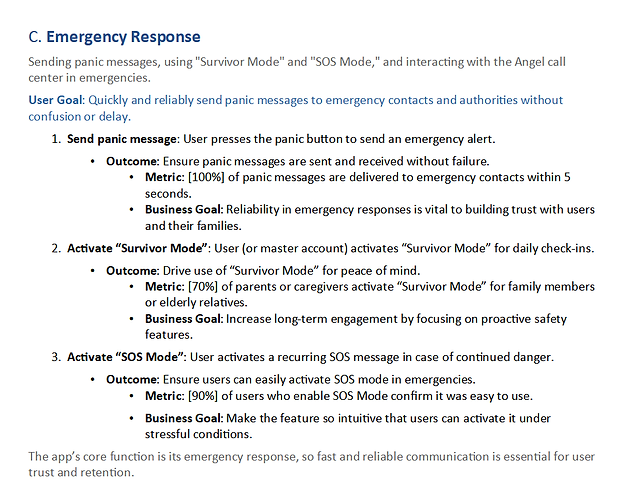
C. Emergency Response
Behavior-Driven Goals
In addition to solid metrics, we framed goals around user behaviors that signal positive engagement and alignment with the product's value in order to learn if we're solving the right problems and if users find the product useful.
1• Engage with Safety Features. ►
2• Explore the App’s Capabilities.
3• Increase Frequency of Use in Key Scenarios.
4• Seek Additional Safety Products.
1. Engage with Safety Features
What we're looking for: Users engage with key safety features like adding emergency contacts, using the panic button, or sending an OK message.
Behavior goal: Within the first week of onboarding, the majority of users add at least one emergency contact and explore or use at least one core feature (like the panic or OK button).
Why it's important: This tells us that users see the app's value and are beginning to rely on it for safety.
Measure Success
Instead of setting early solid metric goals (like a specific number of downloads), we’ll look at the following user behaviors as indicators of success:
1• Adoption of Key Features ►
2• User Satisfaction.
3• Retention and Repeat Usage.
4• Organic Growth Signals.
1. Adoption of Key Features
Look at how users adopt core and advanced features. The key is to observe what people actually do after onboarding. Are they using the panic button? Do they explore other features like geofencing?
Success metric: A significant portion of users (e.g., 50%) engaging with key features within their first week.
Users
Defining our target audience on deeper level.
Proto-Persona
Based on our initial definition for our target users in Problem Statement, we detailed 4 main Proto-persona.
1. Proto-Persona: Children (Ages 8-12)
2. Proto-Persona: Teens (Ages 13-18)
3. Proto-Persona: Parents/Guardians ►
4. Proto-Persona: Seniors (Ages 60+)
Proto-personas are simply Personas in development, they evolve and grow whenever we learn something new.
3. Proto-Persona: Parents/Guardians

Users Outcomes
To understand user needs, we will start by defining our User Stories. And then we will treat each User Story to define the acceptance criteria to feed into User Flows.
For simplicity, I will include only features related User Stories omitting those related to Pairing wristband, Connectivity, and Call Center integration.

Panic Button
As a user, I want to send an emergency panic message quickly, so that my designated contacts are alerted about my situation immediately.
As a user, I want a grace period before the panic message is sent, so that I can cancel the message if it was triggered accidentally.
As a user, I want the panic message to include my GPS location, so that my contacts can know exactly where I am.
OK Button
As a user, I want to send an "OK" message to my contacts, so that they know I’m safe without needing further follow-up.
As a user, I want to customize the message content for the “OK” button, so that I can provide context about why I’m okay (e.g., I arrived at school, home, etc.).

Wristband Integration
As a user, I want the wristband to automatically send a panic message if it detects a fall, so that I get help even if I’m unable to press the panic button.
As a parent/caregiver, I want to pair additional wristbands to my app, so that I can monitor my family members’ safety and receive alerts from their devices.
As a parent/caregiver, I want to receive an alert if any wristband detects a fall or a panic button press, so that I can respond to emergencies affecting my loved ones.

SOS Mode
As a user, I want to set up an SOS mode that repeatedly sends emergency messages at intervals, so that my contacts are continually alerted in extreme situations, such as being kidnapped or lost.
As a user, I want to easily activate SOS mode from the panic button screen, so that I can trigger it quickly in emergencies.

Survivor Mode
As a user, I want to be required to press the "OK" button daily at a specific time, so that my emergency contacts are notified if something goes wrong and I fail to check in.
As a parent/caregiver, I want to enable Survivor Mode for my family members, so that I can be assured they are safe daily without needing constant manual check-ins.

Gefofence
As a user, I want to set a geofence around a specific location for each wristband, so that I get notified if the wearer moves outside the designated safe area.
As a parent/caregiver, I want to customize the geofence radius (up to 50 meters), so that I can adjust it based on the needs and activities of my family members.

Trace Me
As a user, I want to share my real-time location with selected contacts, so that they can follow my movements in situations where I may need monitoring, such as while traveling or attending large events.
As a user, I want to decide which contacts have access to my real-time location, so that I can maintain control over my privacy.

Locate
As a parent or caregiver, I want to view the real-time location of my child or senior on a map, so that I can ensure they are safe and within the desired area. ►
As a parent or caregiver, I want to receive an alert when my child or senior exits the predefined geofence, so that I can take immediate action to ensure their safety.
As a parent or caregiver, I want to view the location of multiple sub-users (e.g., children or seniors) at the same time, so that I can monitor their whereabouts easily.
Acceptance criteria
The conditions that must be met for a user story to be successful, in order to ensure that the functionality fulfills the user’s needs and aligns with the objectives of the product.
Example User Story:
"As a parent or caregiver, I want to view the real-time location of my child or senior on a map, so that I can ensure they are safe and within the desired area."
Core actions or outcomes expected from the user story:
Action 1: User needs to view the location on a map.
Action 2: The location must be displayed in real time.
Action 3: The map should show the child or senior's position.
Success conditions for how the functionality will work:
Condition 1: The map should display the user's current GPS position.
Condition 2: The map should update every 5 seconds to reflect real-time movements.
Condition 3: The location should be displayed accurately, within a margin of 10 meters.
Information Architecture
User Stories that were started during the Business Outcomes discussion were developed into User Flows and Wireframes.
Sitemaps
As I mentioned earlier, the team came to me prepared. They already discussed and prototyped some features. On the left here, you can see the team initial idea of home screen and navigation. On the right, you can see how the navigation improved by the end of the project.
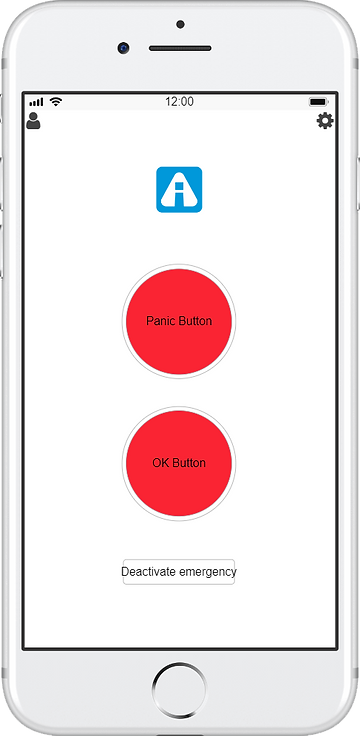

This text-based sitemaps shows how the navigation level increased from ─ lvl 3 to ─ lvl 1 for the most critical use cases (Panic contacts, Panic Message, SOS Mode), and from level ─ lvl 3 to ─ lvl 2 for less critical but high level use cases.

Userflows
Panic Button:
The main feature of iAngle is sending a Panic Message to predefined Contacts or the authority, under any circumstances. iAngle tracker (Ring or Wristband).


► Gallery: Panic Button Flows.
Prototype
Only features that survived the wrath of lean canva prioritizing were prototyped for testing.
01. Login
Visual Requirements:
Colors:
"Colors to use, soft blues and white, app is called iAngel so colors must go with this."
Style:
"We need a mobile app design for emergency and alert purposes, must be a minimalist design, very easy to use."

► Video: 1. Login & Signup.
2. Pair a tracker
Tracker:
-
The app will ask you at launch to pair a tracker.
-
The app will detect if it's a wristband or a ring.
Care Circle:
The app will ask you for your personal information then will ask you if you wish to add other users to your "Circle" as we will see later.

► Video: 2. Pairing a tracker
3. Contact
Contacts:
-
The app will ask you to add contacts that will receive your Panic messages whenever you press Panic button in app or tracker.
-
The app will ask you to add contacts that will receive your OK messages whenever you press the OK button in app or tracker.
Messages:
You can customize your Panic and OK messages or use the default ones.

► Video: 3. Contacts and Messages
4. Panic!
Panic Message:
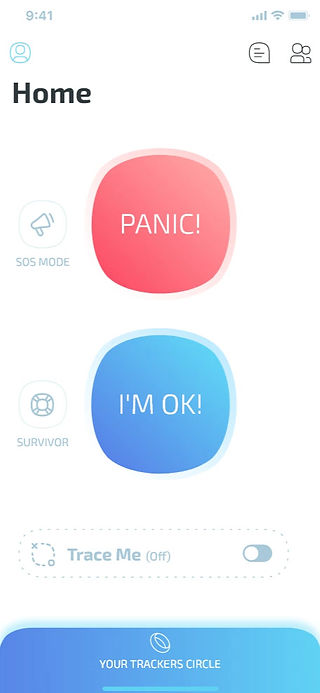
Press the big red button to send the predefined Panic messages to your Panic contacts.
OK Message:
Press the big blue button to send the predefined OK messages to your OK contacts.
Grace Period:
In case of accidental sending, the sending popups allow users to cancel. Grace period can be adjusted in Settings.

► Video: 4. Panic and OK Signals
5. Survivor Mode
SOS Mode:
PANIC messages sent from TRACKER or APP will automatically resent at a time interval you specify until you deactivate it.
SOS mode is meant to be used in accidents and extreme situations!
Survivor Mode:
Press TRACKER button twice or use OK button daily to let us know you're OK. If you miss, we will contact you every 30 minutes.
If you don’t answer soon, we will act as you specify in your subscription.
Admin of TRACKERS CIRCLE can subject other members to 1-to-1 SURVIVOR mode!
► Video: 5. Survivor Mode
6. Care Circle
Primary User:
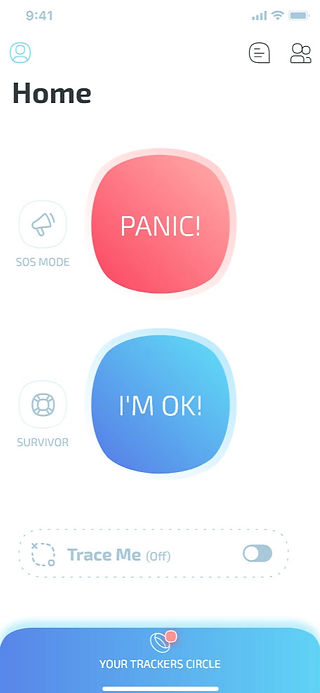
The primary user of iAngel may create a care circle. Each other member has their own tracker and uses iAngel-lite app.
-
Set a Geofence for a member and be alerted anytime they cross it.
-
Locate a member on map anytime.
-
Turn on Survivor Mode for a member so they must send you OK signal on the selected time everyday.
► Video: 6. Tracker Circle
7. Notifications
Primary users will be alerted any time a member:
-
Crosses Geofence.
-
Fails to check-in (sending an OK signal) at the specified time.

► Video: 7. System Notifications
8. Trace me!
Any member can ask their contacts to trace them in real time. Contacts will be notified.

► Video: 8. Trace Me